MIDI Note Grid
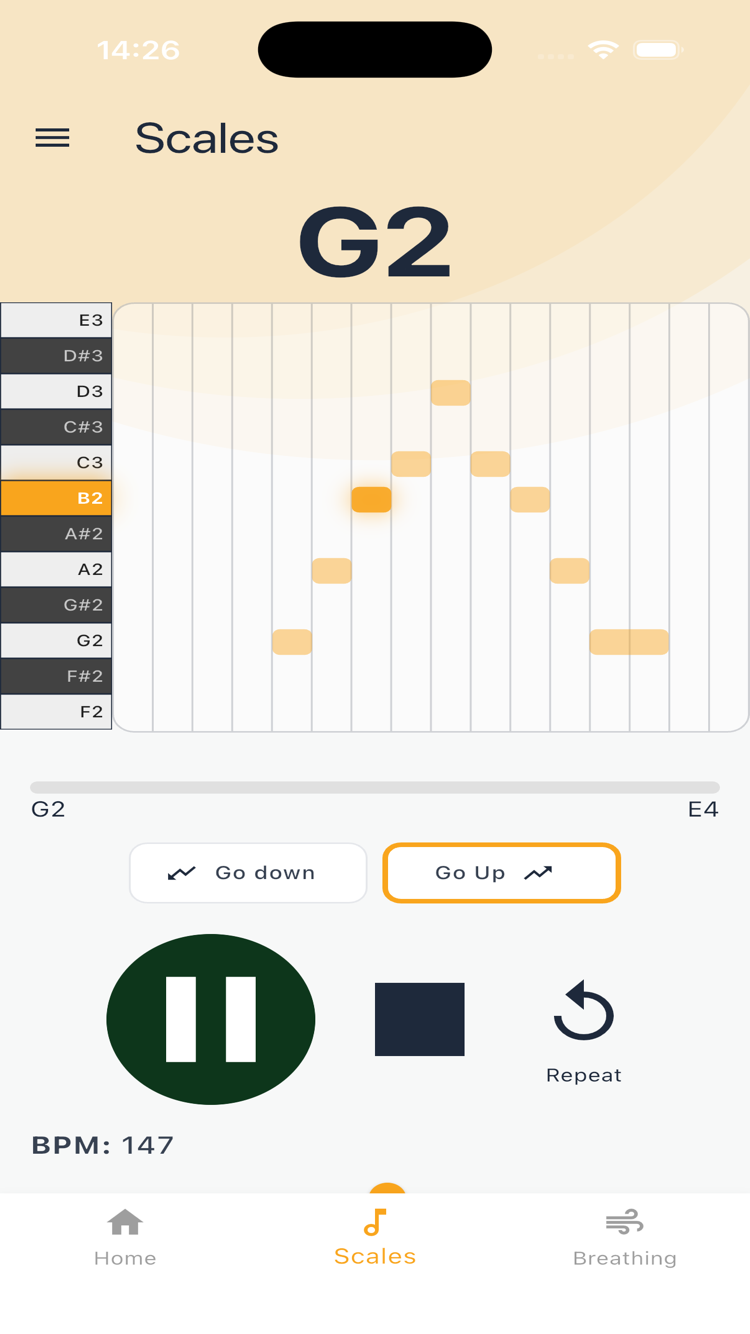
The MIDI Note Grid is a visual guide that appears during scale exercises. It shows every note in the current scale as blocks on a chart, so you can follow along with the music and see what is coming next.
What It Shows
The grid is a two-dimensional chart, like a piano roll.
- Rows represent pitch. The highest notes sit at the top, and the lowest at the bottom. Each row is labelled with the note name (for example, C3 or G3).
- Columns represent time, moving left to right. Each column is one beat.
Note blocks sit at the intersection of the right pitch and the right beat. Wider blocks mean longer notes; narrower blocks mean shorter notes. This layout lets you scan the whole exercise at a glance before and during playback.
Along the left side, a vertical piano keyboard mirrors the pitch rows. When the app plays a MIDI note, the matching key lights up to confirm the pitch you should be matching.
States
The grid responds to the exercise playback state:
| State | What You See |
|---|---|
| Idle | A placeholder message ("Press Play to see notes") inside a rounded panel. No blocks or highlights are visible. |
| Playing | The current note block glows with a bright highlight and a soft shadow. All other blocks appear in a muted tone. The highlight jumps from one block to the next as the exercise advances. |
| Paused | The highlight freezes on the last played note. The grid stays frozen until you resume or stop. |
| Stopped | All highlights clear instantly. The grid returns to the idle state. |
There is no continuous animation. The highlight simply changes colour on each note event, so the grid stays responsive even at fast tempos.
How to Use
The grid appears automatically between the key label and the progress bar when you start any scale exercise. You do not need to enable it or open a separate screen.
Here is how to read it:
- Follow the glowing block. As the exercise plays, one block at a time lights up. Match your voice to the highlighted note.
- Read ahead. Scan the grid from left to right. You can see upcoming notes before they sound, so you are never caught off guard.
- Use the piano sidebar. The left-side keys light up for each MIDI note being played. If you lose your place, glance at the sidebar to find the active key.
The grid shows only the notes you will actually sing. Guide notes and rests are hidden, keeping the display clean and focused on your vocal line.
For details on starting, stopping, and configuring scale exercises, see Scale Exercises.